
You just installed Claude Code, opened the official docs, and the first screen hits you with devcontainer, Docker, and --dangerously-skip-permissions. A lot of people’s first reaction is: “I only wanted AI to help me write some code—why do I need to learn containers?”
That is not Anthropic trying to make life harder for beginners. The biggest difference between Claude Code and ordinary code completion is that it actually runs commands on your machine, edits multiple files, pulls dependencies, and runs tests. More capability means more risk of mistakes and overreach. Docker’s role here is to add a reproducible fence around that power—protecting your host while giving everyone on the team the same environment.
This guide follows a beginner-friendly order: why Docker gets recommended → a 30-second Docker mental model → how the official devcontainer fits in → a hands-on first run → when you can skip Docker entirely. You do not need to become an ops expert first.
In one sentence: why does Claude Code keep mentioning Docker?
The core reasons boil down to three:
- Isolation: Commands running inside a container cannot reach your host’s
~/.ssh, cloud credentials, or personal photo folders by default—unless you explicitly mount them in. - Reproducibility:
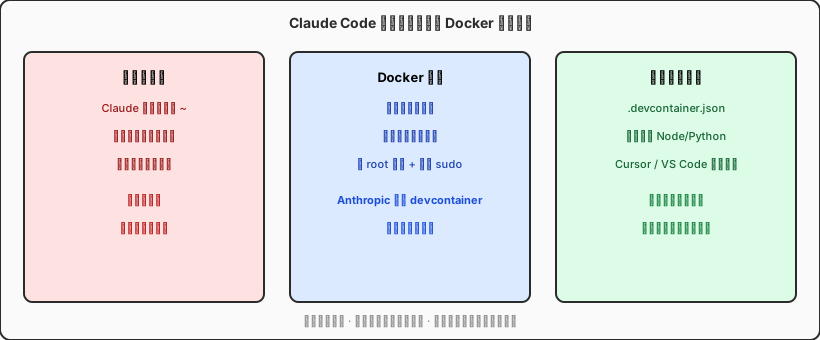
.devcontainer/devcontainer.jsondocuments Node versions, which CLIs to install, and more. Teammates clone the repo, rebuild the container, and get the same environment as you—fewer “works on my machine” threads. - Security baseline: In the claude-code repository, Anthropic maintains a reference devcontainer with a default-deny outbound firewall (only whitelisted domains such as npm, GitHub, and the Anthropic API). That gives “unattended agent runs” a defensible foundation in the documentation.
The official Development containers documentation is blunt: the dev container runs in Docker, your editor (Cursor, VS Code, JetBrains, etc.) connects to it, terminals and build tools execute inside the container, and the files you edit still map back to your local repo. Claude Code’s CLI also runs inside the container—that is the full meaning of “Docker recommended.” It is not about moving all development into containers; it is about giving the AI agent a bounded job site.
For complete beginners: what is Docker, really?
Forget Kubernetes and microservices for now. For Claude Code newcomers, one metaphor is enough:
A Docker container = a lightweight, disposable “mini computer” with a pre-installed OS slice, Node/Python, and the tools you need. It shares your real machine’s CPU, but its filesystem and network can be configured separately.
Compared with virtual machines, containers start fast and use less disk. Compared with installing software directly on the host, containers leave no junk when you delete them—which matters for AI, because Claude might try ten different dependency combinations in a single afternoon.
Three terms are enough to get started:
| Term | Think of it as | Relation to Claude Code |
|---|---|---|
| Image | Environment snapshot / installer package | The official Dockerfile defines what is inside the container |
| Container | The running mini environment | You type claude here; commands execute inside it |
| devcontainer | Instructions telling the editor how to start the container | .devcontainer.json + optional docker-compose.yml |
For broader Docker concepts, see the Docker official Get started guide; this article focuses on the shortest path for Claude Code.
docker compose up, start with why 2026 AI tutorials assume you already know Docker for the big picture. This piece is specifically about why Claude Code’s official docs weave Docker into the security story, and how to configure your first run.
What is inside Anthropic’s official devcontainer?
The .devcontainer/ folder in anthropics/claude-code is not decoration—it is a reproducible secure development template. The main files break down like this:
devcontainer.json: volume mounts, environment variables, VS Code/Cursor extensions, and which Feature installs Claude Code;Dockerfile: base image (e.g. Debian/Ubuntu), dev tools, non-root user;init-firewall.sh: default-deny outbound traffic with a domain whitelist—the piece most people skip when writing their own Dockerfile.
The docs recommend installing via the Claude Code Dev Container Feature. For example, declare it in devcontainer.json:
{
                  "image": "mcr.microsoft.com/devcontainers/base:ubuntu",
                  "features": {
                    "ghcr.io/anthropics/devcontainer-features/claude-code:1.0": {}
                  },
                  "remoteUser": "node",
                  "mounts": [
                    "source=claude-code-config-${devcontainerId},target=/home/node/.claude,type=volume"
                  ],
                  "containerEnv": {
                    "DISABLE_AUTOUPDATER": "1"
                  }
                }
Note the mounts entry that gives ~/.claude its own named volume: after you rebuild the container, login state and session history can persist without re-authenticating every time. That is why the official docs dedicate a section to it.
If you are already using a configuration bundle like ECC (Everything Claude Code), think of the devcontainer as the hardware layer: ECC manages skills and hooks; Docker decides which filesystem Claude’s commands actually touch.
The security story: why “skip permission prompts” only makes sense in a container
Claude Code asks you to confirm almost every bash command and file write by default. For CI pipelines or long unattended jobs, some people add --dangerously-skip-permissions.
The official position is explicit: that flag is for hardened devcontainers, not for your desktop host. Skipping confirmations on the host means giving AI unrestricted access to your user directory—it can delete files, read secrets sitting next to your keychain, and send requests to arbitrary URLs. A container setup at least provides:
- Filesystem boundary: mount only the project directory plus necessary config volumes;
- Network boundary: outbound firewall limits where traffic can go;
- User boundary: run as non-root with restricted sudo.
Important caveat: containers are not a silver bullet. If you put ~/.aws or a production database URL in .env and mount it into the container, the AI can still read it. Security depends on what you mount and whether the repo is trustworthy. The official text also says: “Only use dev containers when developing with trusted repositories.”
--dangerously-skip-permissions on the host long-term. The first defeats isolation; the second is like taping your root password to the monitor.
Hands-on: your first Claude Code run inside Docker
Below is a path verified on macOS and Windows (WSL2). You do not need to finish a Docker book first.
Step 1: Install a Docker engine
Pick one—team consistency matters more than brand loyalty:
- macOS: Docker Desktop (easiest); on Apple Silicon, Colima and OrbStack are also common and expose a compatible
dockerCLI; - Windows: Docker Desktop with the WSL2 backend;
- Linux: Docker Engine directly, or rootless Podman (confirm devcontainer CLI support first).
After install, run docker --version and docker run hello-world in a terminal. Seeing “Hello from Docker” means you are good to proceed.
Step 2: Prepare your project and devcontainer config
Create .devcontainer/ at your repo root. You can:
- Copy the reference config from
anthropics/claude-codeand adapt the Dockerfile for your project; or - In Cursor / VS Code, run Dev Containers: Add Dev Container Configuration Files, then add the Claude Code Feature per the official docs.
If you do not want to hand-write JSON, install Claude Code on the host once and ask in plain language: “Generate a .devcontainer for this Node 20 project with the Claude Code Feature and pnpm.” You still need to manually review mount scope and firewall sections—the AI will not know your security posture.
Step 3: Open the project inside the container
Cursor / VS Code users: open the command palette and choose Dev Containers: Reopen in Container. The first build may take several minutes; incremental starts are much faster afterward. When your terminal prompt changes and which node points to a path inside the container, you are “in the box.”
Terminal-only workflows work too:
# At project root, when docker-compose.yml already exists
                docker compose up -d
                docker compose exec dev bash
                claude
Service names depend on your compose file; devcontainer standardizes this flow so editors can automate it.
Step 4: Verify Claude Code works inside the container
In the container terminal, run claude and try something small—e.g. “List the scripts in package.json and explain them.” Watch for:
- File changes appearing in host Git status (they should—bind mounts are working);
cat /etc/os-releaseshowing the container OS (not your host version);- Claude failing to access a path you did not mount (expected denial).
When all three check out, the isolation layer is doing its job. Team docs can then say: “Reopen in Container before running Claude Code,” and newcomers skip separate Node version setup.
When you actually do not need Docker
Official recommendation is not a mandate. Host-native runs are often simpler in these cases:
| Scenario | Recommendation | Why |
|---|---|---|
| Editing one or two files while you watch and confirm each action | Claude Code on the host | No unattended risk; one less build wait |
| Pure iOS / Swift work heavy on Xcode | Xcode on the host; backend services in containers | Apple’s toolchain does not live in Linux containers |
| Team CI overnight batch jobs | devcontainer + skip-permissions | Needs firewall + reproducible images |
| Contributing to untrusted open-source repos | Container or separate VM required | Malicious scripts cannot reach your SSH keys |
| Remote Linux VPS agent deployment | Docker Compose or systemd + containers | Same mindset as local devcontainer; see VPS deployment guides |
A simple decision rule: “Am I willing to let AI run commands automatically while I am away?” If yes and the repo is trusted → use a container and tighten mounts. If no → interactive host usage is enough.
Mac users: how Docker coexists with Apple development
Many readers use a Mac for both Xcode and AI-assisted full-stack work. A practical split looks like this:
- Xcode, simulators, and code signing stay on native macOS;
- Node/Python services, long Claude Code sessions, and experimental scripts go into a devcontainer;
- When the team needs a unified backend environment, commit
docker-compose.ymland run API integration inside containers.
On Apple Silicon, running x86 images is slow—prefer arm64 base images. Give Docker Desktop at least 4–8GB of RAM; otherwise parallel dev servers plus Claude sessions will swap and feel sluggish.
Troubleshooting quick reference
- Claude asks you to log in again after Rebuild: check whether
~/.claudeis mounted as a named volume instead of living in the container’s writable layer. - Container cannot reach npm / GitHub: inspect
init-firewall.shwhitelist; corporate proxies may needHTTP_PROXYas well. - Port 3000 not reachable: declare
forwardPortsin devcontainer or port mappings in compose. - Permission denied: confirm
remoteUsercan write the project directory; on Linux bind mounts, UID alignment is a frequent fix. - Docker Desktop fails to start: on Windows check WSL2; on Mac check whether security software blocks virtualization.
FAQ
Do both Claude Code and Cursor’s built-in Agent need Docker?
No. Cursor Agent runs in your local workspace by default. Claude Code is a standalone CLI with first-class devcontainer support in the official docs. You can edit in Cursor and run claude in a container terminal—the two coexist fine.
Does devcontainer require VS Code?
No. The spec was popularized by VS Code, but Cursor, JetBrains, and GitHub Codespaces all support it. You can also use plain docker compose plus a shell—you just lose the one-click Reopen in Container convenience.
I already deploy OpenClaw with docker compose—is this redundant?
Not really. Deployment compose cares about “getting services online”; devcontainer cares about “where Claude executes during development.” The mental model overlaps, but the config goals differ. Your OpenClaw deployment experience will make mounts and networking easier to reason about here.
How do I update Claude Code inside a container?
The official Feature installs the latest CLI by default and often enables auto-update inside the container. To pin a version, fix the install script in your Dockerfile or set DISABLE_AUTOUPDATER in containerEnv.
My company blocks Docker Desktop—what now?
Ask IT about a remote devcontainer host, GitHub Codespaces, or an internal Kubernetes dev space. Claude Code needs an isolated Linux environment—not necessarily Docker on your laptop.
Wrap-up: Docker is not homework—it is Claude Code’s seatbelt
Back to the title: why does Claude Code recommend Docker?
- Because AI coding assistants can execute, not just suggest;
- Because teams need the same rebuildable environment, not screenshot tutorials for installing Node;
- Because Anthropic wants unattended mode behind a firewall inside a container—not roaming free in your
~/directory.
Do not let the tooling intimidate you. One goal for today: Reopen in Container on a small project, run claude once in the container terminal, and watch commands happen inside the box while file edits land on the host. Once that works, you are ahead of most people who only read the docs.
Whether you wire up ECC, connect MCP servers, or deploy agents to a VPS, you will keep seeing Docker as the AI era’s universal installer—and Claude Code’s official docs were earlier and clearer than most about baking that into the security guide.
On a cloud Mac, Docker and Claude Code are easier to live with
A local laptop running Docker Desktop and Xcode at the same time eats RAM and spins fans fast. Move backend services, long Claude Code sessions, and experimental agents to a VPSSPark cloud Mac mini M4—native macOS with Docker Desktop or Colima, Homebrew and Unix tooling ready, no WSL wrestling on Windows.
M4 unified memory runs containers and Node services efficiently for the price—idle around 4W, suitable for 7×24 devcontainer jobs or unattended overnight builds. Gatekeeper and SIP add another layer of system protection compared with a bare Linux desktop.
If you are planning a “light local machine, heavy work in the cloud” Claude Code workflow, a cloud Mac is the compromise that keeps Docker isolation and the Apple ecosystem in the same place—see plans and pricing so AI coding is not held hostage by laptop memory.