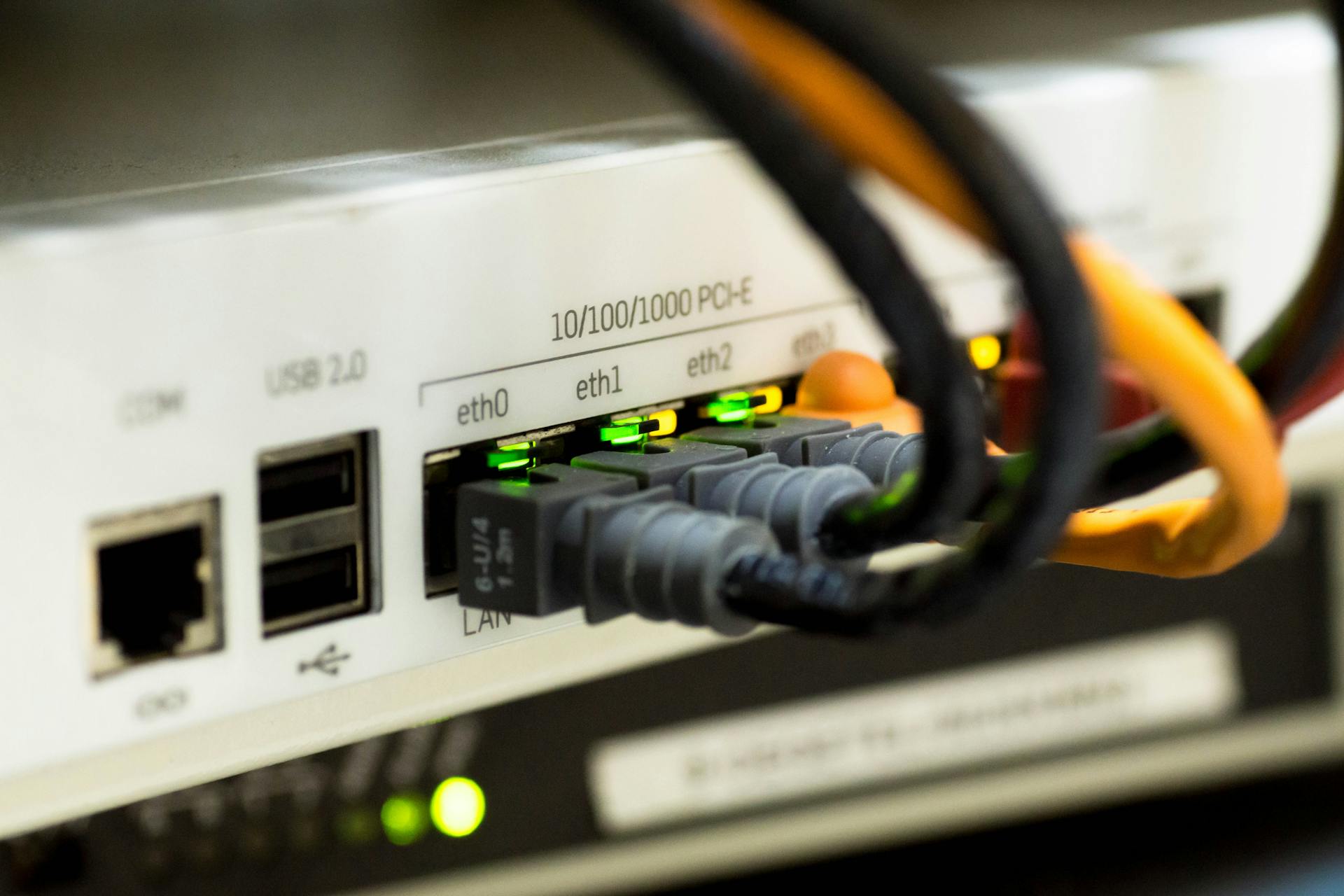
When OpenClaw Gateway runs 24/7 on a Linux VPS, most incidents are not mysterious compiler bugs — they are process state, log signal, and port reachability stacked in the wrong order. This note documents the tiered playbook we use after onboarding and HTTPS hardening so on-call engineers stop guessing whether the failure is systemd, the app, the firewall, or the reverse proxy in front.
Tier 0: two-minute reality check
Confirm the machine is the one you think it is (hostname, image tag, last deploy), then answer three questions: Is the unit supposed to be running? Is it actually running? Is anything listening on the expected loopback port? If any answer is “no”, stay in Tier 0 before opening TLS or DNS tickets.
| Tier | Goal | Primary tools |
|---|---|---|
| 0 | Separate “host down” from “app misconfigured” | uptime, systemctl is-active, ss -lntp |
| 1 | Capture why the daemon exited or flaps | journalctl -u …, openclaw logs (follow/tail flags you ship) |
| 2 | Prove path from client to bound socket | curl -v to loopback, edge URL, then firewall/Nginx/Caddy traces |
doctor --fix, TLS reverse proxy, and rollback — see our Linux Gateway production checklist. Learn more: 2026 OpenClaw Gateway production on Linux: onboard wizard, doctor --fix, HTTPS reverse proxy, upgrade and rollback.
systemd and the Gateway daemon
Always correlate exit codes with restart policy. A service that hits Restart=on-failure in a tight loop will drown useful logs unless you widen the journal window and freeze config edits. Capture one clean failure window: status lines, the last fifty log lines, and whether ExecStart points at the binary you upgraded yesterday.
# Replace openclaw-gateway with your shipped unit name
systemctl status openclaw-gateway --no-pager -l
journalctl -u openclaw-gateway -b --no-pager -n 120
If status shows “activating” forever, suspect missing env files, wrong working directory, or capability drops after a kernel upgrade — not the chat bridge. Pin a known-good unit file in git next to your compose or install script so rollback is systemctl daemon-reload plus a single file swap, not archaeology in /etc.
systemctl is-active.
openclaw logs without drowning in noise
CLI log commands should answer one question per invocation: bootstrap (did config parse?), runtime (which route failed?), or integration (which token/channel rejected?). Rotate files or journald limits before you enable trace — otherwise the VPS disk becomes the incident. When correlating with journalctl, paste timestamps in UTC to avoid “it happened at 9” confusion across regions.
# Example pairing pattern — adjust subcommands to your installed CLI
openclaw logs --since 30m
journalctl -u openclaw-gateway --since "30 min ago" --no-pager | tail -n 80
Gateway port probes: localhost first, then the edge
Probe 127.0.0.1 (or the explicit bind address from config) before testing the public hostname. If loopback fails, no amount of Cloudflare or ACME debugging will help. If loopback succeeds but the edge fails, walk the chain: bind address (0.0.0.0 vs 127.0.0.1), ufw/nftables, security groups, then the reverse proxy upstream block.
curl -svS http://127.0.0.1:18789/health   # example port/path
curl -svS https://gateway.example.com/health
TLS errors on the public URL while loopback is plain-HTTP OK usually mean the proxy is speaking HTTP/2 where the backend expects HTTP/1.1, or the upstream uses the wrong SNI — capture curl -v once and attach it to the ticket instead of screenshots of browser chrome.
FAQ: false positives we see in 2026
“Port closed” from outside but ss shows LISTEN — check security group egress on the client side and whether the Gateway binds only to loopback. 502 after upgrade — stale socket path or changed Unix socket permissions; compare release notes before rolling systemd overrides. Sudden auth failures — token file permissions after an automated chmod; verify owner matches the service user.
When release pressure spikes, splitting Linux Gateway uptime from macOS build capacity keeps blame clean: many teams pair a small always-on VPS for OpenClaw with burst cloud Mac runners — see 2026 short-cycle CI peaks: self-hosted GitHub Actions macOS runners — elastic cloud Mac pool or always-on nodes? for how we size elastic pools versus always-on nodes next to a fixed Gateway.
Run the Gateway on Linux, ship builds from the cloud Mac
A lean Linux VPS is a natural home for always-on gateways and bots: fixed IP, predictable systemd, and low idle power. The other half of the pipeline — Xcode, signing, and burst CI — still wants real Apple hardware. A VPSSpark cloud Mac mini gives you native Unix tooling alongside macOS: Homebrew, SSH, and containers without the friction common on Windows workstations, while Apple Silicon’s unified memory keeps link steps and Swift builds from stalling.
macOS stability and Gatekeeper/SIP reduce the “random Friday breakage” tax compared with ad-hoc Windows build hosts, and the M4 Mac mini’s roughly 4W idle draw makes an always-on runner economically sane next to your VPS bill.
If you are splitting Gateway on Linux and builds on Mac, VPSSpark cloud Mac mini M4 is a practical bridge between the two worlds — explore plans now and keep both sides of the stack on solid footing.