
You just spun up a fresh Linux VPS, or it is 2 a.m. and your monitoring alert says SSH is down. The terminal spits out ssh: connect to host … port 22: Connection refused, and your pulse picks up. Worse: you have no VNC session, no cloud console handy, and nothing but a blinking cursor staring back.
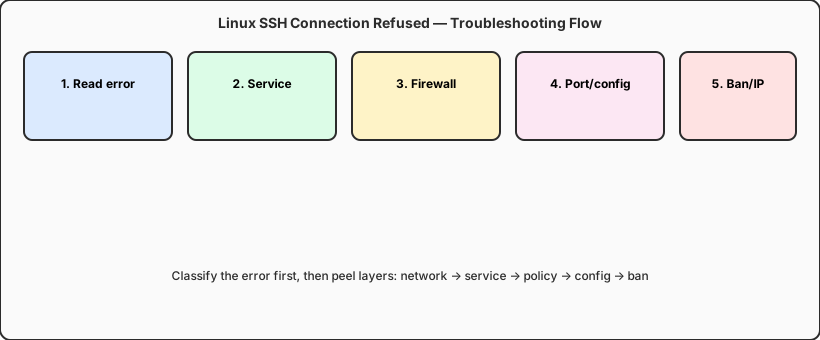
We see this a few times every month. Sometimes a junior engineer edits sshd_config and forgets to reload. Sometimes a security group allows 80 and 443 but not 22. Sometimes fail2ban quietly bans your home ISP's IP after a run of bad login attempts. The good news: SSH connection refused is usually diagnosable—no mysticism required. This guide turns the five most common troubleshooting paths from production into a checklist. Read the error first, then work layer by layer. Most root causes surface within twenty minutes.
One assumption up front: you have some alternate way in—cloud console VNC, serial access, or another machine on the same VPC. If you are completely locked out, skip ahead to When you are totally locked out.
Before you troubleshoot: three "can't connect" errors are not the same
A lot of people lump Connection refused, Connection timed out, and Permission denied together—and then chase the wrong problem for an hour. According to the OpenSSH official documentation, each message points to a different layer of the stack:
| Error keyword | What it usually means | Check first |
|---|---|---|
Connection refused |
TCP reached the host, but nothing is listening on that port—or a local firewall sent REJECT | Is sshd running? Correct listen port? ufw/iptables on the box? |
Connection timed out |
Packets dropped in the path (routing, cloud security group, upstream firewall) | Security group, correct public IP, ICMP/port probes |
Permission denied |
SSH handshake succeeded, but authentication failed (keys, password, user policy) | Key permissions, AllowUsers, fail2ban ban on your IP |
-v for detailssh -v user@host on the client (stack up to -vvv if needed). Watch whether it stalls at "Connecting" or "Authenticating." The former is network or port; the latter is keys and user configuration.
Getting this distinction right saves real time. Connection refused means your packet arrived—the problem is on the server side or immediately at its network edge. Timed out means something in between swallowed the traffic, so staring at sshd_config on a machine you cannot reach is pointless until you fix the path. Permission denied is almost always credentials, account policy, or an IP ban after the TCP session already succeeded.
If you are on a team, paste the exact error string into the incident channel. "SSH is broken" invites twelve guesses; "Connection refused on port 2222 from office IP" narrows the search immediately.
Method 1: Confirm IP, DNS, and port reachability (network layer)
Before you blame sshd, prove the road is open. On brand-new VPS instances, the top culprits are a mistyped IP, DNS that has not propagated yet, or sshd listening on a non-default port while you still connect on 22.
Run these from your local machine, in order:
# 1. Confirm resolved IP is correct
                dig +short your.domain.com
                ping -c 3 your.server.ip

                # 2. Probe whether SSH port is open (replace 22 with your actual port)
                nc -zv your.server.ip 22
                # or
                telnet your.server.ip 22

                # 3. Connect with explicit port (avoids ~/.ssh/config surprises)
                ssh -p 22 -i ~/.ssh/id_ed25519 user@your.server.ip
If nc returns Connection refused, packets are reaching the server—the issue is local service or local firewall. Move on to Method 2. If you get timed out or the probe hangs, prioritize the cloud provider's security group / Network ACL: does the inbound rule allow TCP on 22 (or your custom port)? Is the source 0.0.0.0/0, or did someone restrict it to a private subnet by mistake?
Also sanity-check your own network. Corporate VPNs, university networks, and some ISPs filter port 22. Temporarily moving sshd to 443 or 2222 for a comparison test is a classic move: if the alternate port works, the root cause is filtering on the path—not the server itself.
When you manage several hosts, keep a small cheat sheet of public IPs and SSH ports. Copy-paste errors from an old ticket are surprisingly common, especially after a provider migrates instances or reassigns elastic IPs.
For hostname-based access, remember TTL and caching. You might have updated DNS five minutes ago, but your laptop or upstream resolver still points at the old address. dig +short from your machine is the source of truth—not what you see in the registrar UI.
Method 2: Check whether the sshd service is running
One of the most frequent causes of Connection refused: sshd never started, or the service name changed after an OS upgrade. On Ubuntu/Debian the unit is usually ssh; on RHEL/CentOS/Rocky it is sshd. Do not guess—verify with commands.
After logging in via VNC or the cloud console, run:
# Debian/Ubuntu
                sudo systemctl status ssh
                sudo systemctl start ssh
                sudo systemctl enable ssh

                # RHEL/CentOS/Rocky
                sudo systemctl status sshd
                sudo systemctl start sshd

                # Is it listening? Which address and port?
                sudo ss -tlnp | grep ssh
                # Expect 0.0.0.0:22 or [::]:22

                # Config syntax check (run after every edit)
                sudo sshd -t
                sudo systemctl reload ssh   # or sshd
If systemctl status shows failed, pull logs immediately: sudo journalctl -u ssh -n 50 --no-pager. Fatal errors often include typos in the config, a missing HostKey file, or ListenAddress bound to the wrong interface. After any fix, always run sshd -t before reload—we have seen too many people reload blindly, sshd fails to start, and they lock themselves out.
On freshly reinstalled systems, confirm openssh-server is installed: sudo apt install openssh-server on Debian-family hosts, or sudo dnf install openssh-server on RHEL-family. Minimal cloud images sometimes ship without an SSH server at all.
Disk full can also stop sshd from starting or accepting sessions. A quick df -h from the console is worth ten minutes of remote head-scratching. Likewise, if someone enabled MaxStartups too aggressively during a brute-force wave, legitimate clients can see refused connections under load—check journalctl for "drop connection" messages.
When multiple sshd versions coexist after a partial upgrade, which sshd and the unit's ExecStart path should match. Mismatched binaries and config paths produce confusing "it was working yesterday" incidents.
Method 3: Inspect host firewall and cloud security groups
sshd is up, ss shows a listener, but clients still get refused—the next suspect is firewall rules dropping or rejecting traffic. Linux servers usually stack two layers: the cloud security group (outside the NIC) and ufw/iptables/nftables on the OS (inside). Both must allow your SSH port.
Common checks on the system:
sudo ufw status verbose
                sudo ufw allow 22/tcp
                sudo ufw allow 2222/tcp   # if you changed the port
                sudo ufw reload

                # firewalld (CentOS, etc.)
                sudo firewall-cmd --list-all
                sudo firewall-cmd --permanent --add-service=ssh
                sudo firewall-cmd --reload

                # Inspect nftables/iptables directly
                sudo iptables -L INPUT -n -v
Cloud security groups must be changed in the provider console when SSH is down—there is no magic CLI from your laptop. Three details matter: protocol is TCP, the port range includes your SSH port, and the source CIDR is not accidentally limited to one internal host. During testing, temporarily opening to 0.0.0.0/0 is fine; tighten to your office egress IP once you confirm connectivity.
If Docker or Kubernetes runs on the VPS, iptables rules may be rewritten automatically. Run sudo iptables-save | grep 22 and look for DROP or REJECT rules inserted ahead of ACCEPT. For minimal exposure and the SSH-vs-HTTPS port tradeoff, see our Linux minimal exposure firewall SSH/HTTPS decision FAQ.
IPv6 is an easy miss: you might fix IPv4 in the security group while ssh user@host prefers AAAA records and hits a blocked v6 path. Test with ssh -4 and ssh -6 when behavior feels inconsistent.
Document which layer blocked you. Teams that only fix ufw and forget the security group tend to repeat the same outage the next time someone "hardens" the box.
Method 4: Verify port and sshd_config settings
Many admins move SSH off port 22 or set ListenAddress to an internal interface only. Clients still connecting on 22 will see refused. The server config lives at /etc/ssh/sshd_config. Key directives (full reference in the sshd_config manual):
Port 2222
                # ListenAddress 0.0.0.0   # default: all interfaces; 127.0.0.1 blocks external access
                PermitRootLogin prohibit-password
                PasswordAuthentication no
                AllowUsers deploy admin
The safe port-change sequence: confirm the new port is listening, update the firewall, then retire the old port. Do not do it in one reckless step—we have seen "change 22 to 2222 and close port 22 in the security group immediately" leave people locked out before the new port was verified.
On RHEL-family systems with SELinux enabled, after changing ports run sudo semanage port -a -t ssh_port_t -p tcp 2222 or sshd may fail to bind. Ubuntu's AppArmor can restrict paths too; logs will call that out clearly.
On the client, double-check ~/.ssh/config for a wrong Port or HostName. In teams using Host prod aliases, copying a command without -p is a recurring mistake.
AllowUsers and DenyUsers can produce confusing results: TCP connects, sshd answers, then authentication fails—or in some setups, the connection closes early. If you recently tightened user policy, compare the username you use locally with what the server allows.
Jump hosts and ProxyJump add another variable. A refused error on the final hop might mean the bastion is fine but the target's port or security group is not. Test each segment with ssh -J and plain nc to the inner host from the bastion.
Method 5: Check for IP bans (fail2ban / hosts.deny)
If you see Permission denied instead of refused but you are sure the key is correct, suspect an IP ban. fail2ban adds iptables or hosts.deny rules after repeated password failures or odd handshakes. The fail2ban wiki explains jail mechanics in depth.
On the server, inspect:
# fail2ban status
                sudo fail2ban-client status sshd
                sudo fail2ban-client set sshd unbanip YOUR.CLIENT.IP

                # Classic hosts-based bans
                grep -v '^#' /etc/hosts.deny
                grep -v '^#' /etc/hosts.allow

                # Cloud "ops lock" or DDoS mitigation
                # → check provider console for security alerts or temporary IP blocks
Banning yourself is common: a script misfires, dozens of failed logins fire in seconds, and fail2ban jails your office egress IP. After unbanning, add admin IPs to ignoreip, or disable password auth and rely on keys to reduce false positives.
If you run Jenkins, GitLab Runner, or similar agents that SSH back into the VPS, registration failures sometimes masquerade as SSH weirdness. In hybrid topologies, the controller-to-agent network path deserves its own diagram—see Jenkins hybrid topology: VPS controller + cloud Mac JNLP enterprise pool.
Cloudflare and other proxies do not terminate SSH on port 22 the way they do HTTP. If you fronted the wrong service or confused bastion DNS with app DNS, step back and map which hostname should expose SSH at all.
When you are totally locked out: use the rescue lane
If all five methods still leave you outside, try these in order:
- Cloud VNC / serial console—does not depend on SSH; log in and fix config directly
- Snapshot rollback—if you snapped before the change, restoring beats an all-nighter
- Single-user mode / rescue image—mount the original disk, chroot, edit
sshd_config - Support ticket—some providers can temporarily open a port or lift a block
The lesson is simple: never make "might disconnect me" changes on your only SSH session. Keep a second terminal open, use tmux, and treat firewall and sshd edits as high-risk operations.
After recovery, write a three-line postmortem: what changed, what signal you missed, and which backup access path saved you. The next on-call will thank you.
Prevention checklist: avoid the next scramble
Spend ten minutes after the incident—cheaper than panic next time:
- Key-based login, disable passwords;
~/.ssh/authorized_keysmode 600 - Non-standard SSH port is fine—change security group and sshd_config together
- Set fail2ban
ignoreipfor trusted nets so you do not ban your own team - Run
sshd -tbefore reload; snapshot before risky changes - Monitor over a channel that is not "SSH port 22 up/down" alone—agent or private-network health checks
Consider a dedicated bastion with a stable egress IP and tight security-group rules on production nodes. Your laptop's coffee-shop IP should not be the only key to the kingdom.
A stable jump host: less panic when things break
Managing multiple Linux VPS instances, many teams keep a bastion with a fixed egress IP for SSH hopping—production security groups only allow the bastion, and you chain in with keys from your laptop. A Mac mini fits this role well: native Unix, Terminal and OpenSSH out of the box; the M4 chip idles around 4W, quiet enough to stay on 24/7 as a relay node—lower power and noise than another x86 box under the desk.
A Windows machine in the same price band draws more power and fan noise for always-on duty; macOS is famously stable for long uptimes, and FileVault plus Gatekeeper make storing private keys less nerve-wracking. If you also need Xcode or Docker for releases on the same hop box, a cloud Mac mini can merge bastion + build on one node and cut context switching.
If you are designing a dependable remote-ops setup, VPSSPark cloud Mac mini M4 is a practical choice for a low-power jump host and dev node— see plans and pricing so SSH troubleshooting is not a solo act at 2 a.m.