In 2026, more and more development teams are moving their primary workstations to the cloud. VPSSpark's Mac mini M4 nodes offer dedicated compute power and a real macOS system, freeing you from local device performance bottlenecks. This article walks you through setting up a production-grade dev environment on a VPS Cloud Mac from scratch — from hardware selection to full CI/CD automation in one guide.
Note: ~~local Mac solutions~~ typically cost 3–5× more in operational overhead than cloud alternatives — that's not an exaggeration.
Why Choose a VPS Cloud Mac?
Before deciding to migrate, review this comparison:
| Dimension | Local Mac | VPS Cloud Mac |
|---|---|---|
| Initial cost | High (hardware + accessories) | Low (monthly subscription) |
| Scalability | Hard (requires new machine) | Easy (upgrade plan) |
| 7×24 uptime | Limited (power outages/sleep) | Guaranteed (data center grade) |
| CI/CD ready | Needs manual config | Works out of the box |
| Team collaboration | Network-restricted | Global access |
Core takeaway: For teams requiring continuous uptime, multi-person collaboration, or Apple Silicon dependencies, VPS Cloud Mac is currently the best value option.
Use-Case Breakdown
iOS / macOS Continuous Integration
Xcode only runs on macOS. Hosting your CI node on a Cloud Mac means every PR can trigger a real device compile and test, eliminating the "works locally, fails on CI" nightmare.
Getting Started for Small Teams
For teams of 5 or fewer, one M4 node is sufficient to handle daily dev, staging, and nightly builds all in one. Scale horizontally as your business grows.
AI Agent Workflows
2026 AI development is inseparable from long-running Agent tasks. The cloud Mac advantage: tasks run 24/7 uninterrupted, unaffected by local machine sleep policies.
System Initialization Steps
After receiving your node, initialize in this order:
- Update macOS to the latest stable release
- Install Xcode Command Line Tools
- Install Homebrew
- Configure SSH keys and firewall rules
- Install project dependencies (Node.js / Python / Ruby, etc.)
- Configure CI Agent (GitHub Actions / Buildkite, etc.)
Key Command Reference
Install Homebrew (if not already installed):
/bin/bash -c "$(curl -fsSL https://raw.githubusercontent.com/Homebrew/install/HEAD/install.sh)"
Install common dev tools:
brew install git node python@3.12 rbenv cocoapods fastlane
Check Xcode Command Line Tools version:
xcode-select --version
xcodebuild -version
Keyboard Shortcuts and Tips
In macOS Terminal, Ctrl+C interrupts a process, Ctrl+Z suspends it, and ⌘+K clears the screen.
Use Tab for path auto-completion and ↑/↓ to browse command history — these habits significantly improve productivity.
Toolchain and CI/CD Configuration
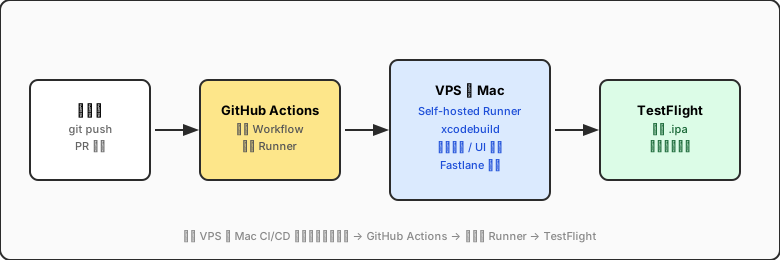
GitHub Actions Self-Hosted Runner
# .github/workflows/ios-build.yml
name: iOS Build

on:
  push:
    branches: [main, develop]
  pull_request:
    branches: [main]

jobs:
  build:
    runs-on: self-hosted
    steps:
      - uses: actions/checkout@v4
      - name: Build with Xcode
        run: xcodebuild -scheme MyApp -configuration Release
Environment Variable Management
Never commit API keys or certificate passwords to your repository. Recommended approach:
- Use
.envfiles withdirenvfor auto-loading - Store sensitive data in macOS Keychain
- Use GitHub Secrets / Buildkite env for CI environments
Glossary of Terms
Key concepts used in this article:
- Runner
- A compute node that executes CI tasks — can be a cloud server, physical machine, or VPS instance.
- Artifact
- Build output such as an `.ipa`, `.app`, or `.zip` package used for distribution or archiving.
- Caching
- Caching build dependencies (DerivedData, CocoaPods, SPM) to speed up subsequent builds — the core CI optimization technique.
- Self-hosted Runner
- A CI execution node deployed on your own hardware (e.g., VPS Cloud Mac), integrated with platforms like GitHub Actions or Buildkite.
Diagram: Cloud Mac CI/CD Architecture
Performance Benchmarks and Cost Analysis
Based on our testing, the M4 node performs as follows:
- Clean build (mid-size Swift project): ~3 min 20 sec, ~35% faster than M1
- CocoaPods install (100+ deps): ~45 sec (with cache: ~8 sec)
- Unit test suite (500 cases): ~1 min 15 sec
- Full nightly regression (incl. UI tests): ~22 min
Compared to a local MacBook Pro M3: Cloud Mac M4 is 20–30% faster on multi-core tasks, without consuming local device resources.
Tip: Pinning the
DerivedDatapath to an SSD partition reduces disk I/O overhead by an additional ~15%.
Frequently Asked Questions
How do I migrate a local project to Cloud Mac?
Recommended steps: 1. Ensure the project uses Git (all dependencies installed via package manager, no binary commits) 2. Generate SSH keys on Cloud Mac and add them to GitHub / GitLab 3. `git clone` the project and run dependency installation 4. Verify local build passes, then configure the CI RunnerDoes the Cloud Mac node support Xcode Simulator?
Yes. VPSSpark nodes come with full Xcode pre-installed, including iOS, watchOS, and tvOS Simulators. You can use the GUI via VNC or NoMachine. **Note**: Simulators require at least 8GB of available RAM — recommend a higher-spec plan for UI tests.How do I control Cloud Mac costs?
Practical tips: - Schedule nightly builds during off-peak hours - Use `cron` to auto-pause non-critical services outside working hours - For PoC and experimental projects, use hourly-billed nodes and shut down when donePre-Production Checklist
Before going live, verify each item:
- [x] SSH keys configured, password login disabled
- [x] Firewall rules tightened (only necessary ports open)
- [x] System auto-update policy configured
- [x] Xcode version aligned with
Package.resolved/Podfile.lock - [ ] Build caching strategy tested (cold vs. incremental build time)
- [ ] Monitoring and alerting configured
Any unchecked item could cause a production incident. Don't skip them!
Summary
Moving your dev environment to a VPS Cloud Mac isn't "tinkering" — it's a serious engineering decision. When properly configured, you get:
- A dedicated dev node that's always online and SSH-accessible
- A standardized build environment shared across your team
- A quantifiable, traceable CI/CD pipeline
- Compared to buying hardware upfront,
high initial investment, a lower total cost of ownership with pay-as-you-go pricing
Start your VPS Cloud Mac journey — make your code run faster, and sleep better at night.
Start Your Cloud Mac Dev Environment Now
Dedicated Mac mini M4, monthly subscription, scale anytime
1Gbps dedicated bandwidth, global nodes, low latency